Already have an add-on ZIP saved on your computer? Learn how to find that file, install it in Blender 5.2, enable it, and find the new tools—without searching the internet.
Downloaded ZIP firstNo online search neededBlender 5.2
WHAT YOU'LL LEARN
A little toolbox magic
Which downloaded .zip file to use
Where to find it on your computer
How to use Install from Disk
How to enable your new add-on and find its controls
Blender 5.2 and an add-on installation file you downloaded from a trusted developer. The example here applies to future Workshop downloads such as Threadspell once released.
Blender 5.2 and a little curiosity
Have Blender open. An internet connection is helpful for the official extension library; an already-downloaded package also works offline.
✦
BEFORE YOU CLICK ANYTHING
What is an add-on?
An add-on adds extra tools to Blender. Some are installed from Blender's online library, but tools distributed by their creators—such as a future Threadspell download—may arrive as a ZIP file saved on your computer.
This guide starts with that downloaded file. You do not need to search the extension library or turn on online access just to install a compatible ZIP that you already have. We'll show the exact steps below.
Blender 5.2 has two useful areas:Get Extensions includes Install from Disk, while Add-ons lets you enable and manage the installed add-on. The online browse-and-install method is optional and explained later.
✦
KEEP THIS HANDY
Your add-on spellbook
Downloads
Locate your file
Usually saved in the Downloads folder unless you chose somewhere else.
.zip
Keep it zipped
Choose the installable ZIP from the developer—don't extract it first.
Install from Disk
Pick the ZIP
In Blender Preferences, install a package from your computer.
Add-ons
Enable it
Search the installed add-on name and check its checkbox.
N
Find its panel
Some tools appear in the viewport sidebar; check the developer's guide.
Get Extensions
Optional browsing
Use the online catalog only if you want to find other extensions.
01
FIND THE SETTINGS WINDOW
Open Blender Preferences
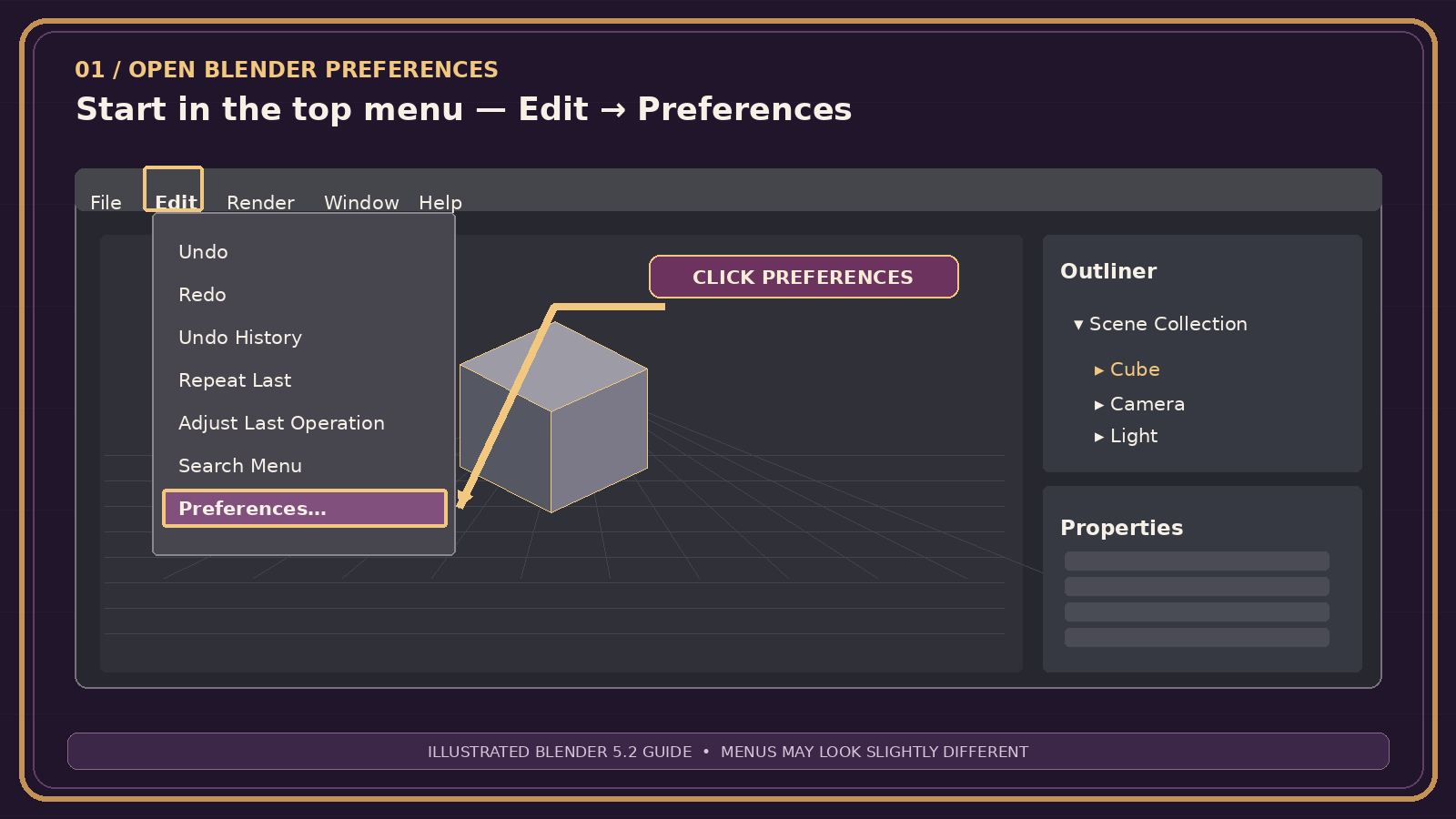
Start in Blender's main window. The place you need is hidden in the top menu, not the 3D Viewport.
Edit›Preferences
Open Blender 5.2.
At the very top of the Blender window, click Edit.
Near the bottom of the dropdown, choose Preferences. A new settings window opens.
Look at the top-left: Edit → Preferences. Click the picture to enlarge it.
Lost already? If you are looking at the main 3D scene, you're in the right place. You do not need to select the cube or enter Edit Mode first.
02
YOUR DOWNLOADED FILE • NO SEARCHING REQUIRED
Install an Add-on Already on Your Computer
This is the method for a tool whose installation file you have already downloaded from its creator. For example, when Threadspell becomes available at The Enchanted Workshop, you would download its supplied add-on file, then follow these same steps in Blender.
01DownloadSave the add-on ZIP
›
02FindLocate it in Downloads
›
03InstallChoose Install from Disk
›
04EnableCheck the Add-ons box
Threadspell is an example, not a download link: The Workshop currently lists Threadspell as coming soon. When it is released, use its actual downloadable installation package and follow any included developer instructions. Do not try to find Threadspell in Blender's online extension library.
Part A · Find the file you downloaded
Download the add-on from its creator. Save the installation file to your computer. Usually it is a .zip; some older add-ons provide a single .py file instead.
Find the file on your computer. On many Windows computers, open File Explorer → Downloads; on macOS, open Finder → Downloads. If you saved it somewhere else, use that folder. Your web browser's Downloads list can also show where it went.
Keep the installable ZIP as a ZIP. Do not extract it or open its individual Python files unless the developer specifically instructs you to. If the download is a bundle containing several packages, find the actual Blender add-on ZIP as instructed by its author.
Part B · Tell Blender which file to install
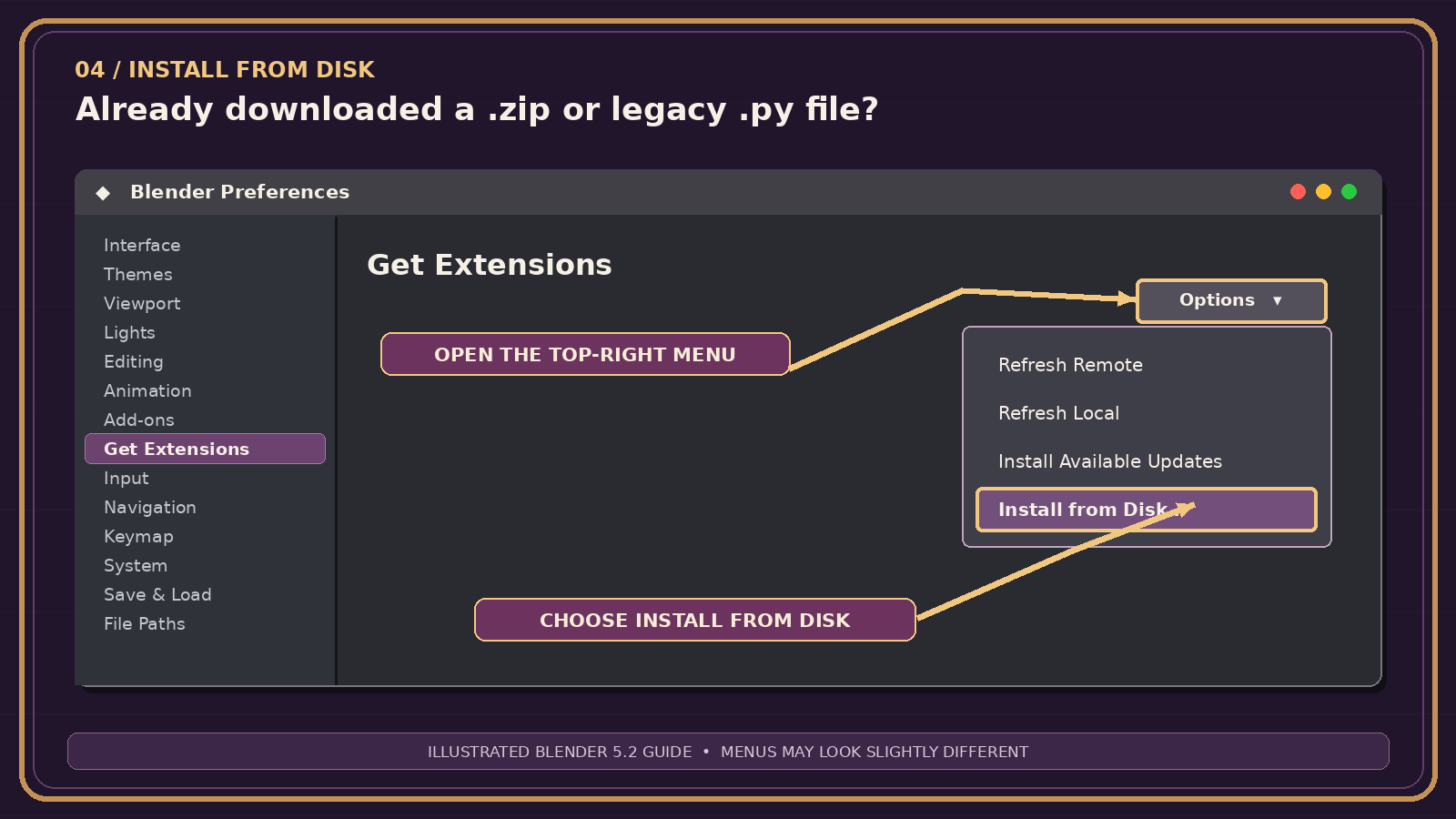
Edit›Preferences›Get Extensions›Top-right ▼›Install from Disk
Open Blender 5.2 and choose Edit → Preferences.
Click Get Extensions on the left. This is where the Install from Disk command lives; you are not searching the online library.
At the top-right of Preferences, click the small ▼ menu and choose Install from Disk.
Look in the top-right menu: Choose Install from Disk. The online extension search field is not needed.
Blender opens a file browser. Navigate to the folder where your download is saved—often Downloads.
Click the actual add-on installation ZIP (or the supported legacy .py file). Be careful not to choose a screenshot, a .blend project, or an unrelated ZIP.
Confirm using the file browser's Install from Disk button, then accept any installation prompt from Blender.
Open Preferences → Add-ons, search for the add-on's name, and enable its checkbox if it isn't already enabled. Legacy add-ons often need this extra step.
✧ FILE PICKER EXAMPLEIllustration, not an exact screenshot
📁 Downloads
📦 your-add-on.zipSelect the actual add-on package
Choose the file, not the folder. Its filename will depend on the tool you downloaded. Then confirm installation in Blender's file browser.
Important: You can install an already-downloaded ZIP without Allow Online Access. Use a file you trust; Blender add-ons can execute code on your computer. A locally installed extension may also need manual updates from its developer.
03
ONE LAST CLICK AFTER INSTALLING
Enable the Add-on & Find Its Tools
The ZIP being installed doesn't always mean the add-on is enabled yet. This is the step to check right after the file browser closes.
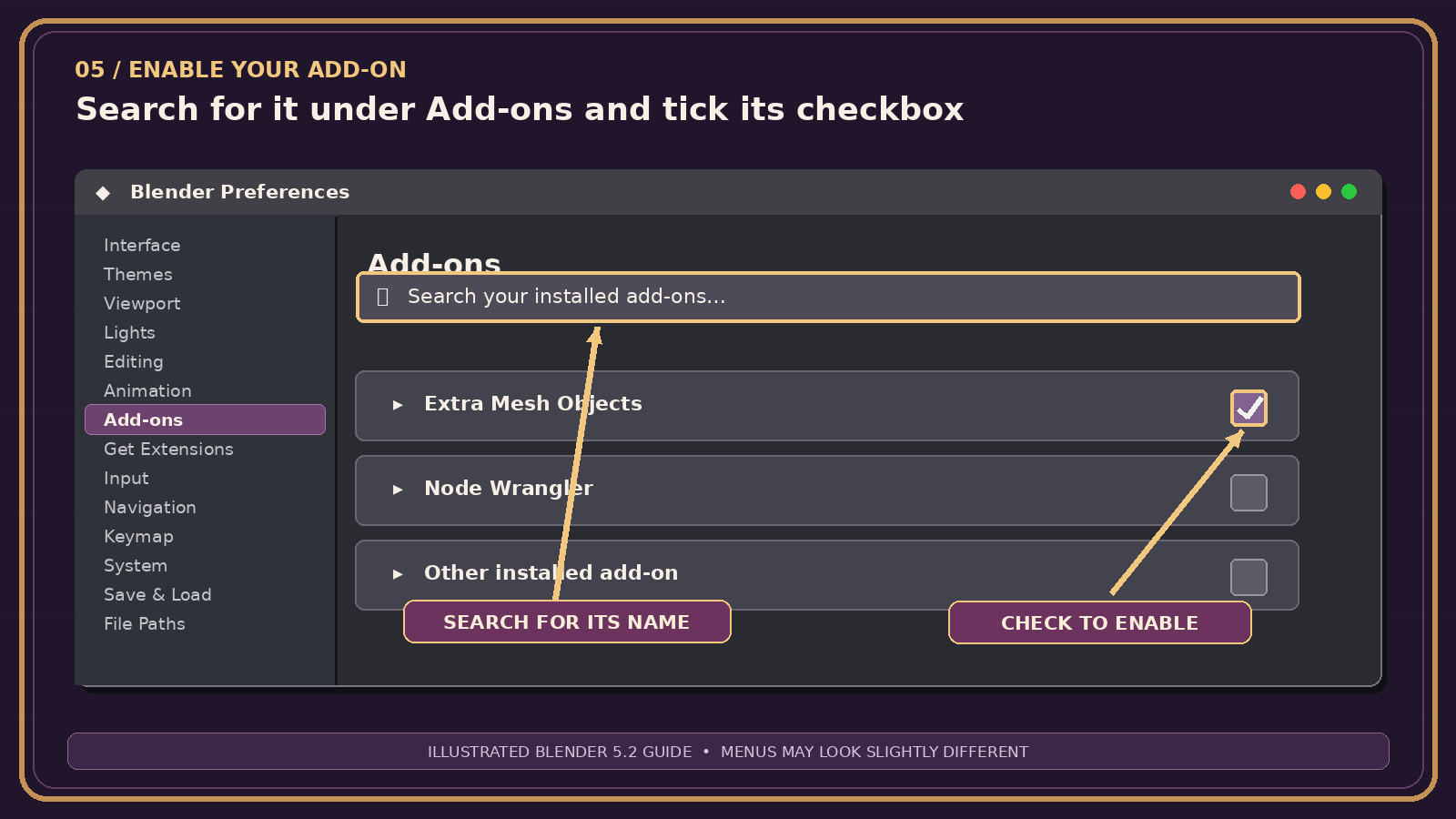
Return to Edit → Preferences → Add-ons and type the installed tool's name into the search field.
Find its row and tick the checkbox if it is not already checked. Legacy add-ons installed from disk usually start disabled.
Close Preferences and return to the main Blender window.
Search the installed name: Click the checkbox to enable the add-on. If it's checked already, you're ready.
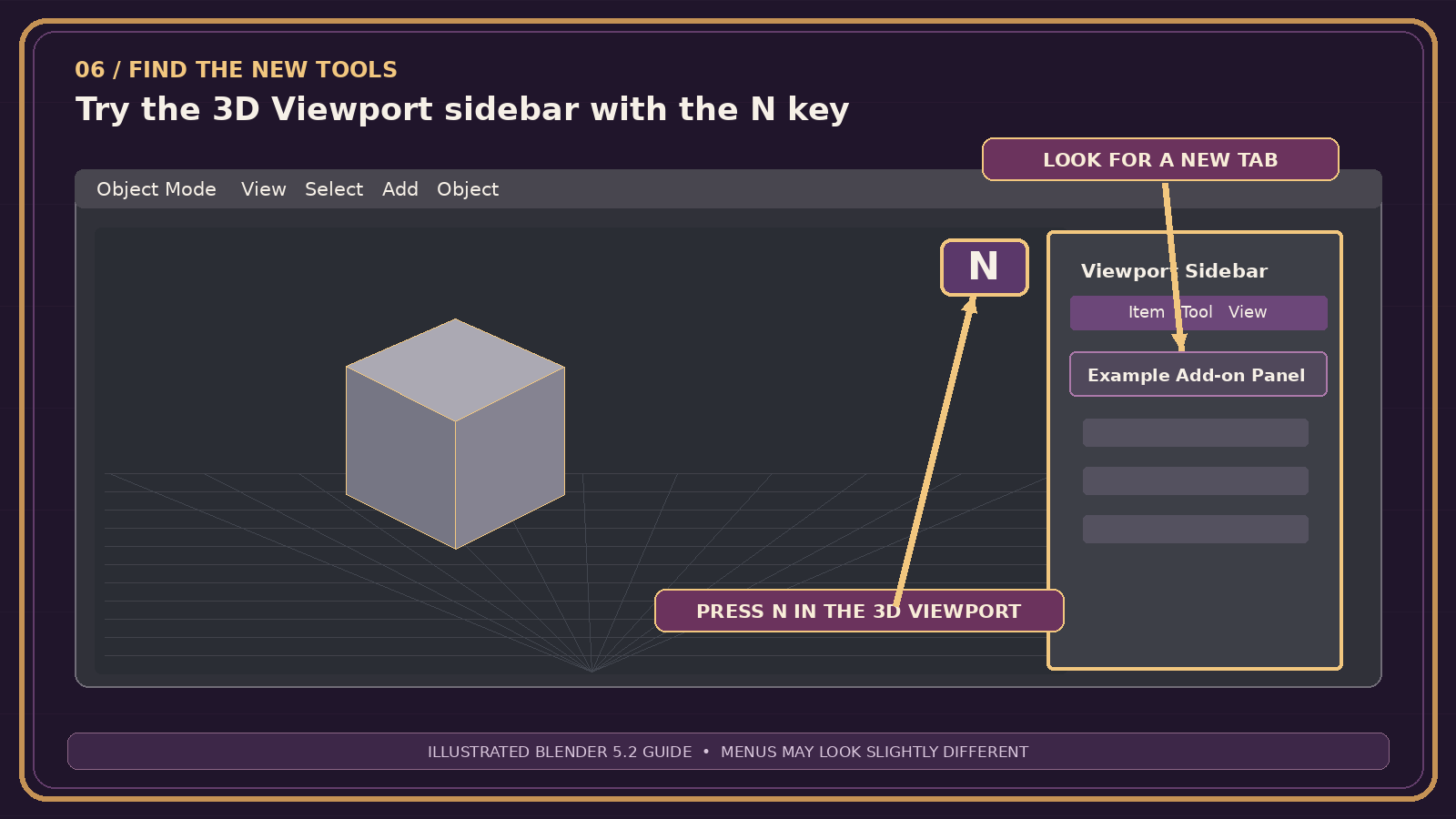
Next, find where the developer put the tool. Different add-ons have different locations; a common place is the 3D Viewport sidebar.
Move your pointer over the 3D Viewport and press N to open the sidebar. Check the tabs on the right.
If the tool isn't there, read the add-on's own instructions. It may appear under an object menu, another editor, or a different panel.
Try N over the 3D Viewport. This is just one common location for add-on tools, not a guarantee for every download.
✧
Your downloaded add-on is installed!
You found its ZIP on your computer, installed it without online searching, enabled it, and located where to use it.
04
OPTIONAL · NOT NEEDED FOR DOWNLOADED ADD-ONS
Prefer to Browse Blender's Online Extensions?
This is a different installation method for extensions listed in Blender's online catalog. You can skip this entire section when installing a ZIP you already downloaded, such as a future Threadspell package.
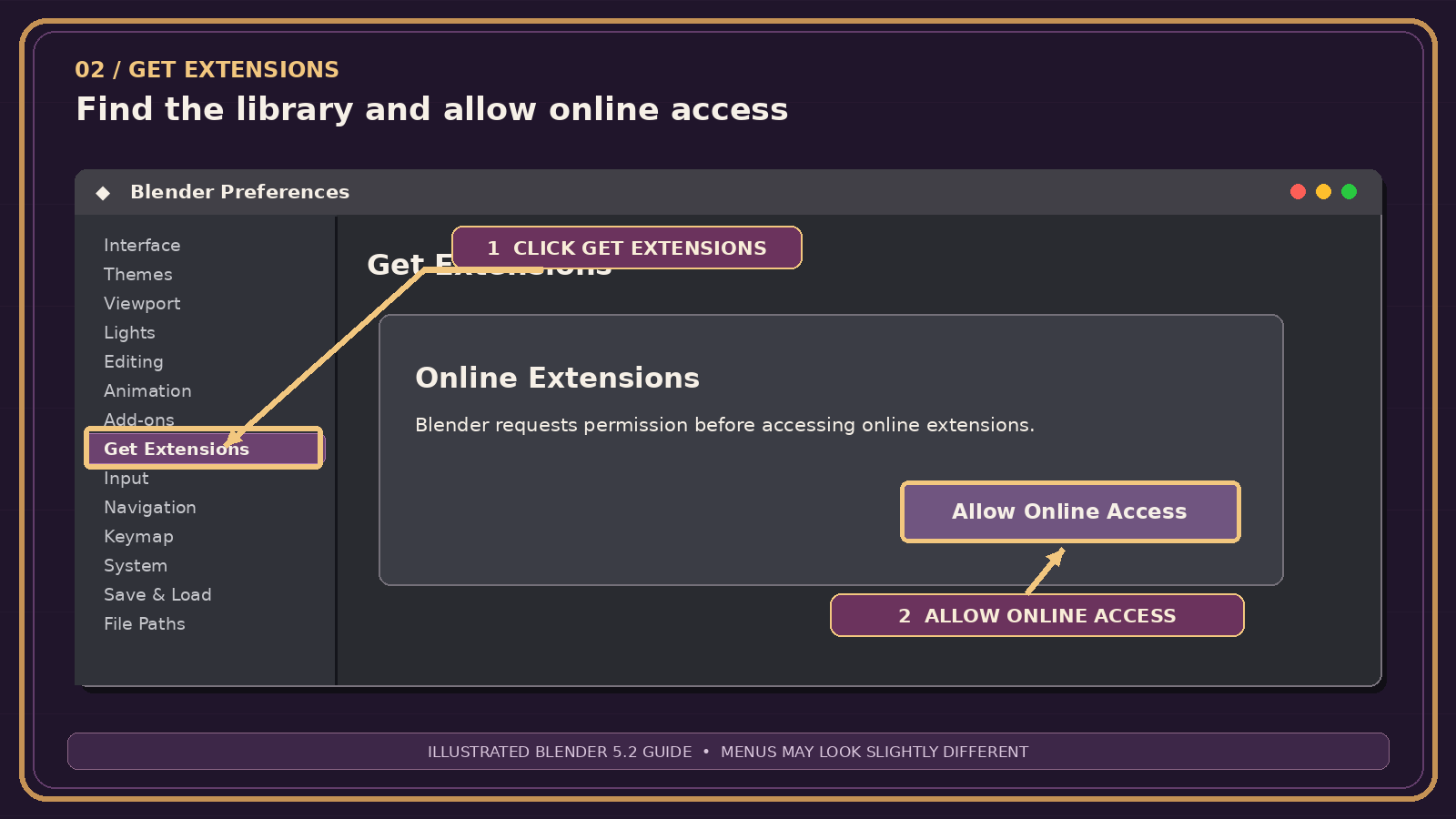
Edit›Preferences›Get Extensions
In the Preferences window, click Get Extensions in the left sidebar.
If Blender asks, click Allow Online Access. This lets Blender contact its online extension repositories.
First: Get Extensions. Then: Allow Online Access, if prompted.
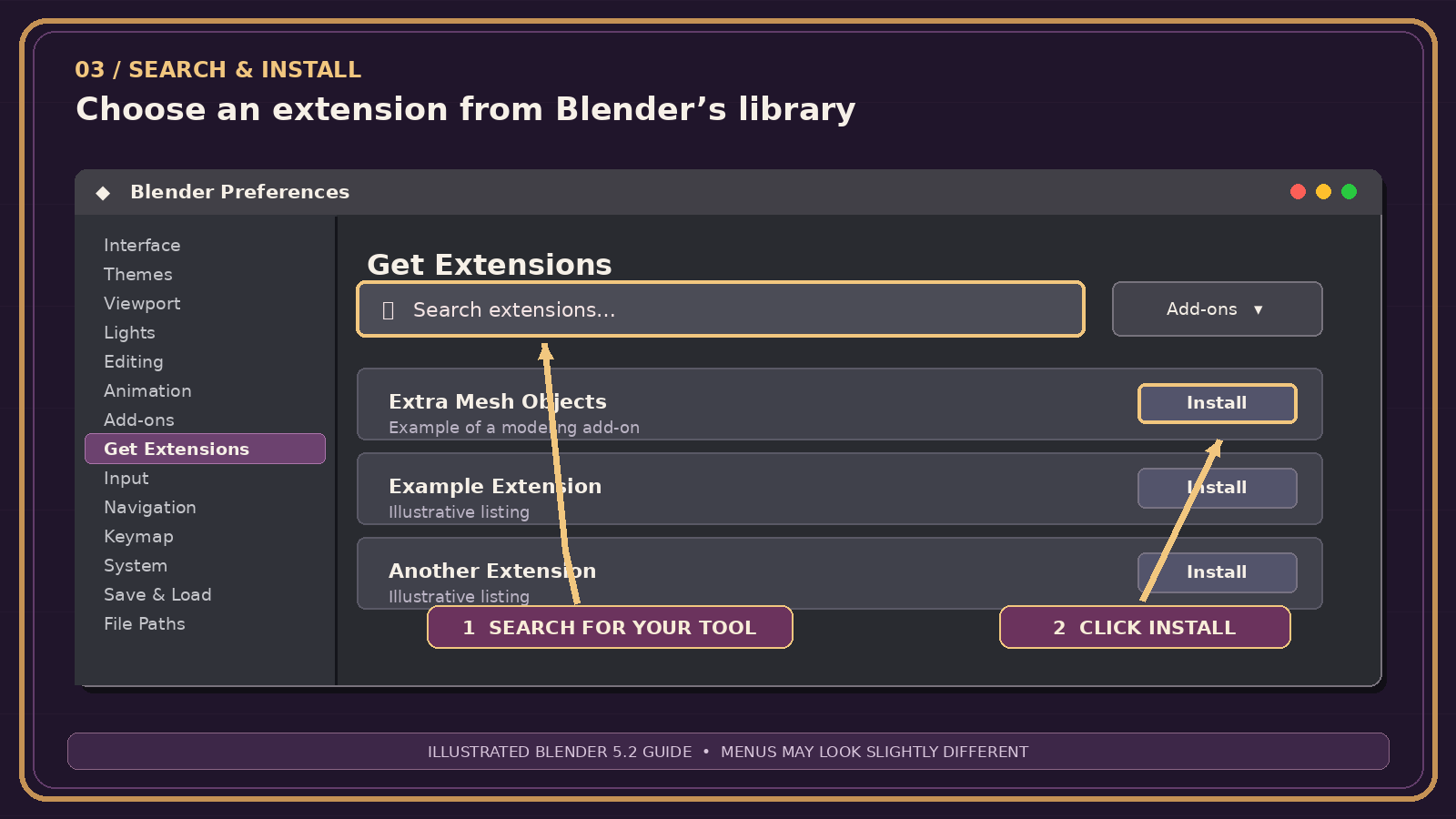
Use the search field to find the add-on you want. You can browse the official catalog at Blender Extensions as well.
Click Install beside your chosen add-on, following any confirmation prompts.
Switch to Add-ons and search its name to check whether it is enabled. Some extensions enable during installation; others may need an extra checkbox.
Search, choose, install. Example names are shown for orientation; your list will vary.
Little workshop tip: An extension and an add-on aren't quite the same thing. Extensions can also be themes; use the Add-ons filter when you specifically need a tool.
✦
WHEN BLENDER HIDES THE MAGIC
Little fixes when something goes wrong
Blender doesn't see my ZIP.
Open the folder where you saved it—usually Downloads. Select the file ending in .zip, not the folder. Check your browser's downloads list if needed.
My downloaded ZIP won't install.
Make sure it is the actual installable Blender add-on ZIP, not an outer bundle of several files. Check Blender 5.2 compatibility and the developer's instructions.
I installed it but can't find the add-on.
In Preferences → Add-ons, search its actual installed name and enable it. Restart Blender if necessary, then check the developer's guide for its tool location.
Do I have to allow online access?
No. Installing a compatible add-on ZIP with Install from Disk doesn't require searching or connecting to the online extension library.
Blender says it is incompatible.
Get a release that supports your version of Blender. Don't force-install unknown or untrusted Python scripts.
How do I update an add-on I downloaded?
Check the creator's release instructions. Add-ons installed from local files may not have automatic repository updates.