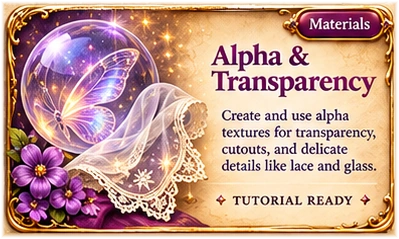
Learn to make genuine transparent textures, from delicate lace cutouts to sheer amethyst wings—without painted checkerboard backgrounds.
Beginner-friendlyBlender 5.2OpenSim & Second Life notes
Welcome to the Workshop!
A dedicated guide for real PNG alpha, Blender nodes, and classic in-world alpha settings.
01
THE INVISIBLE PART OF AN IMAGE
Understand the Alpha Channel
An ordinary image contains red, green and blue color information. A transparent PNG can also hold an alpha channel: it tells the renderer how visible each pixel should be.
Alpha = 0
Fully clear. Nothing is drawn at that spot.
Alpha ≈ 0.5
Partly see-through, like a sheer purple wing membrane.
Alpha = 1
Fully opaque, like a gold vein or leather trim.
Important: A painted gray-and-white checkerboard is not real transparency. Real transparency lives in the PNG's alpha channel—not in the visible background colors.
02
TWO WAYS TO USE TRANSPARENCY
Download Real Alpha Practice Images
These original images are included in the website. Use the PNG files themselves in Blender or a compatible viewer; neither PNG has a painted checkerboard background.
Preview tip: The checkerboard you see behind these examples is added by this webpage for inspection. It is not baked into the downloaded PNGs.
03
A SHORT NODE CONNECTION
Make a PNG Transparent in Blender 5.2
Open Blender and choose File → New → General. Delete the default cube if you like. Add Shift+A → Mesh → Plane and rotate it upright with RX90Enter.
With the plane selected, go to the Shading workspace. Create a new material named Sheer Amethyst.
In the Shader Editor, add Image Texture (Shift+A → Search). Open alpha-amethyst-wings-v195.png.
Connect the Image Texture Color socket to Principled BSDF → Base Color. Connect the Image Texture Alpha socket to Principled BSDF → Alpha.
In Material Properties → Settings (EEVEE), choose the Blended render method for smooth see-through portions. Dithered may give a grainy appearance as a tradeoff.
Switch to Material Preview, orbit the view, and look through the purple parts of the wing. The fully clear outer region should disappear.
Connect both COLOR and ALPHA. Keep the image color space as sRGB for this color texture.
If it is still solid: Check the Alpha link, confirm you're viewing the correct material, and inspect the EEVEE Render Method. Don't confuse the shader's Alpha with Transmission used to simulate glass.
04
MASKED OR BLENDED?
Choose the Right Transparency Style
Alpha Mask / Cutout
On or off: ideal for firm lace edges, leaves, labels, and holes.
Alpha Blending
Gradual opacity: best for sheer wings, curtains, and tinted magical veils.
Glass / Transmission
Physically-inspired light transmission and refraction: a different material effect.
For crisp cutouts in Blender 5.2, a Math → Greater Than node can turn the texture alpha into 0 or 1 before feeding Principled BSDF's Alpha input. For delicate semitransparent details, keep the original grayscale alpha and use Blended for EEVEE.
Overlapping surfaces: Multiple blended layers can display in the wrong order. This is a transparency sorting limitation, not necessarily a broken PNG. Avoid stacking nearly coplanar transparent surfaces when possible.
05
FROM BLENDER TO A VIRTUAL WORLD
Classic Materials in Second Life & OpenSim
A material looking transparent in Blender does not mean its shader settings transfer automatically into Second Life or OpenSim. Upload the actual PNG with its alpha channel and configure transparency on the surface in your viewer.
Export your real RGBA PNG from an image editor (with transparency preserved). Upload it to your grid or use a copy already in inventory.
Apply it to the intended surface. In viewers offering classic Materials, look for Alpha Mode or related material settings.
For your sheer purple membrane use Alpha Blending (sometimes labeled Transparency). For a clean lace cutout use Alpha Masking, adjusting the cutoff only as needed.
Inspect the object from the front, side and against contrasting backgrounds. Viewer versions and grid capabilities may differ.
SL / OpenSim compatibility: Classic Materials and modern PBR/glTF materials are different workflows. This section describes classic alpha behavior; for PBR materials follow the instructions for your grid and viewer.
06
WHEN SOMETHING LOOKS WRONG
Transparency Troubleshooting
A checkerboard is visible in-world
The checkerboard was likely saved into the RGB image. Use a genuinely transparent RGBA PNG, not a screenshot of a transparency preview.
The purple is completely solid
Confirm the PNG has partial alpha, connect Image Texture Alpha to BSDF Alpha, and use an appropriate transparent render method.
The edges have white halos
Remove unwanted pale RGB colors at transparent boundaries and export carefully with clean antialiasing. Premultiplication may also affect edge fringes.
The lace disappears or gets jagged
Raise the texture resolution where needed and test the alpha cutoff. Very fine details can vanish under a hard mask threshold.
Transparent layers flicker or reorder
Blended faces may sort differently as the camera moves. Reduce overlap or use alpha masking for suitable fully cutout details.
I only want the purple wing panels transparent
Keep the veins and outlines at full alpha and lower alpha only in the membrane areas. This preserves the decorative details.
Before You Upload
Background pixels actually have alpha = 0.
Sheer pixels have intermediate alpha values.
Decorative outlines remain opaque.
Check the PNG in more than one image viewer.
Test the intended in-world alpha mode.
✦
YOUR WORKSHOP LIBRARY
Related Lessons & Resources
These are the same lessons from our Blender Basics series—linked here for convenience, not duplicated.